Usage
Adding the Filter
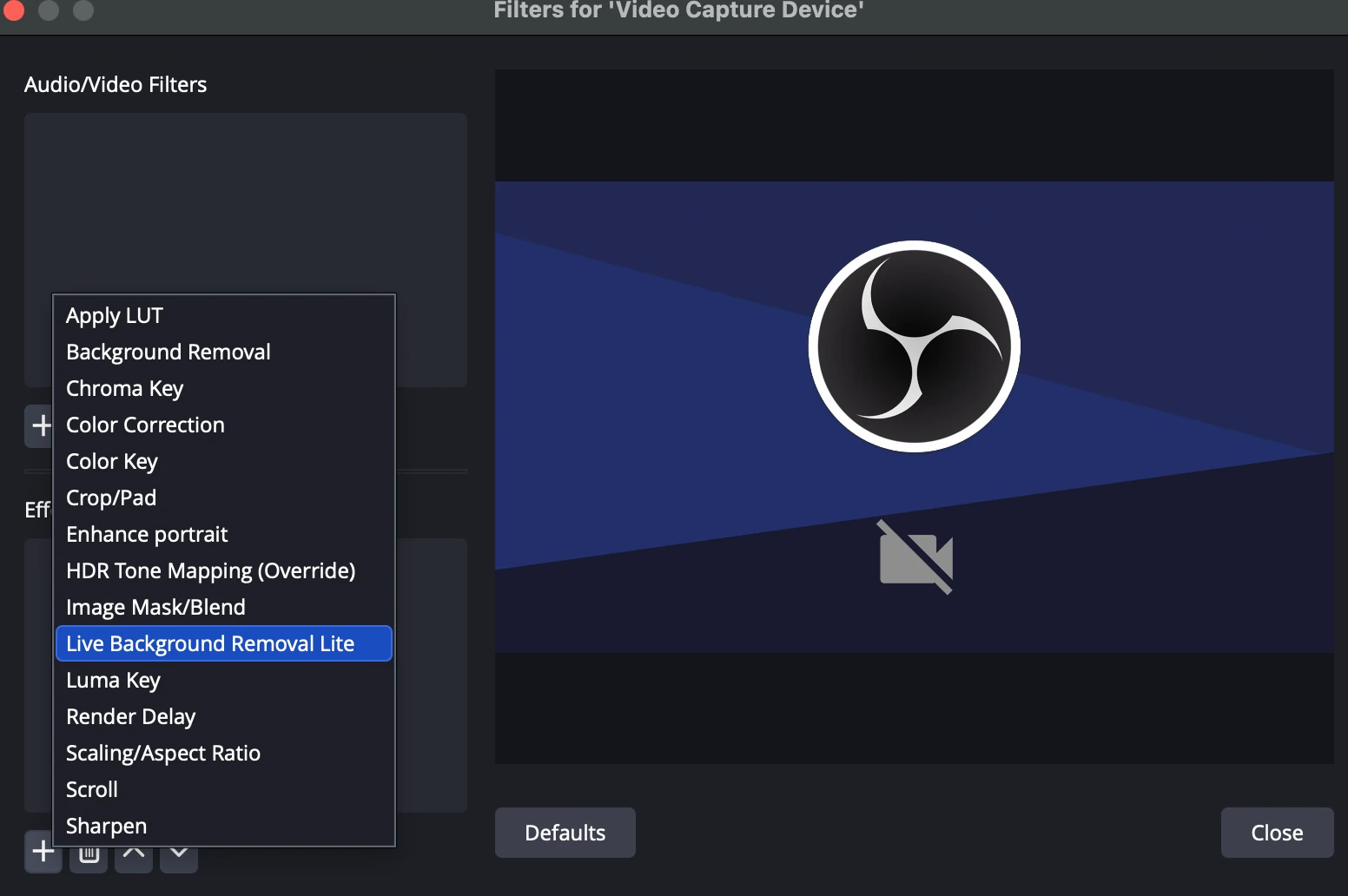
- In OBS Studio, right-click your video source (e.g., your webcam) in the "Sources" panel.
- Select Filters from the context menu.
- In the "Filters" window, under the "Effect Filters" section, click the + button to add a new filter.
- From the list of available filters, select Live Background Removal Lite.
- The filter will be added to your source, and you can now adjust its properties as needed.
Basic Properties
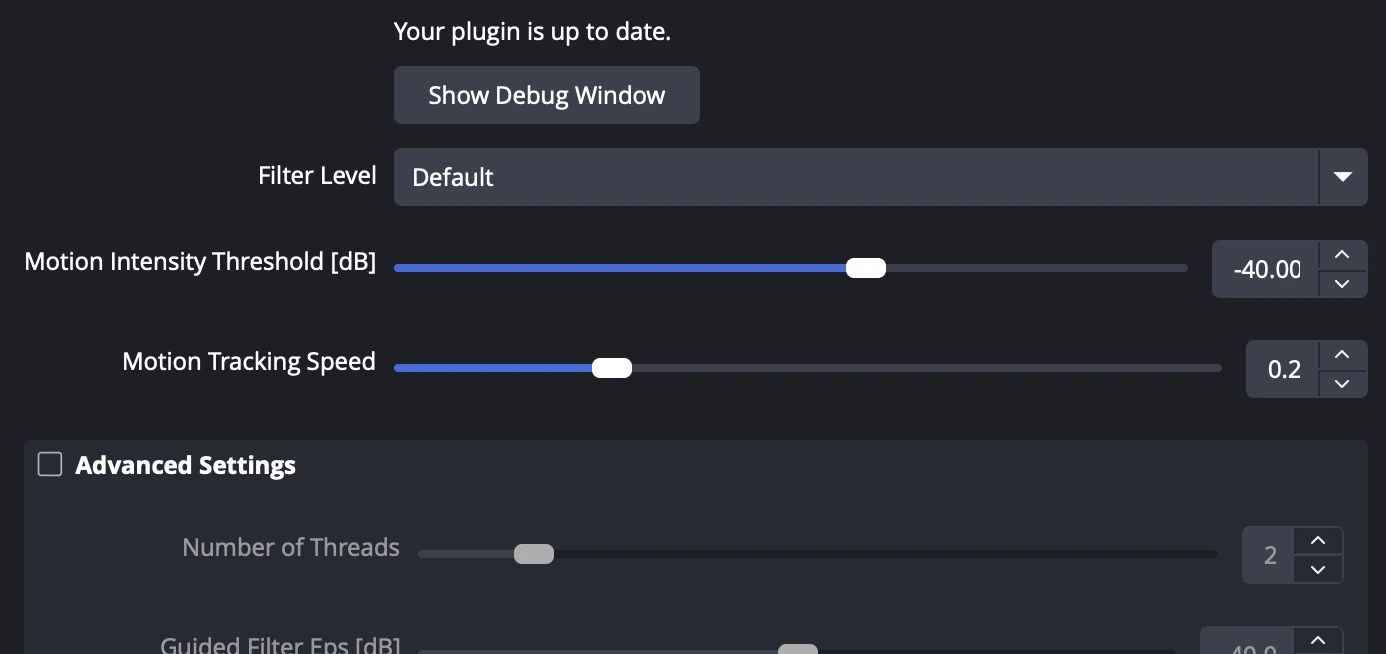
- Plugin Status: The top section displays the current update status of the plugin.
- Filter Level: Selects the processing stage for
background removal.
- Passthrough: No background removal, source is shown as-is.
- Segmentation: Applies a basic segmentation mask to remove the background.
- Motion Intensity Thresholding: Only applies segmentation when motion is detected above a threshold.
- Guided Filter: Refines the mask edges using a guided filter for better quality.
- Time Averaged Filter: Further smooths and stabilizes the mask over time for the highest quality cutout.
- Show Debug Window: Opens the debug view.
Note: Keeping the debug window open significantly increases system load. Close it when not in use. - Motion Intensity Threshold [dB]: Determines the
movement sensitivity to trigger the AI. Lowering this value makes it
less sensitive (duller) and reduces load.
Tip: Adjust this value as low as possible while maintaining accurate mask tracking when you move. - Motion Tracking Speed: Adjusts the filter to suppress
flickering.
- Lower values: Less flickering, but increases mask latency (lag).
- Higher values: Faster tracking response, but may increase flickering.
- 0: The mask stops moving.
- 1: Disables the filter completely.
Advanced Properties
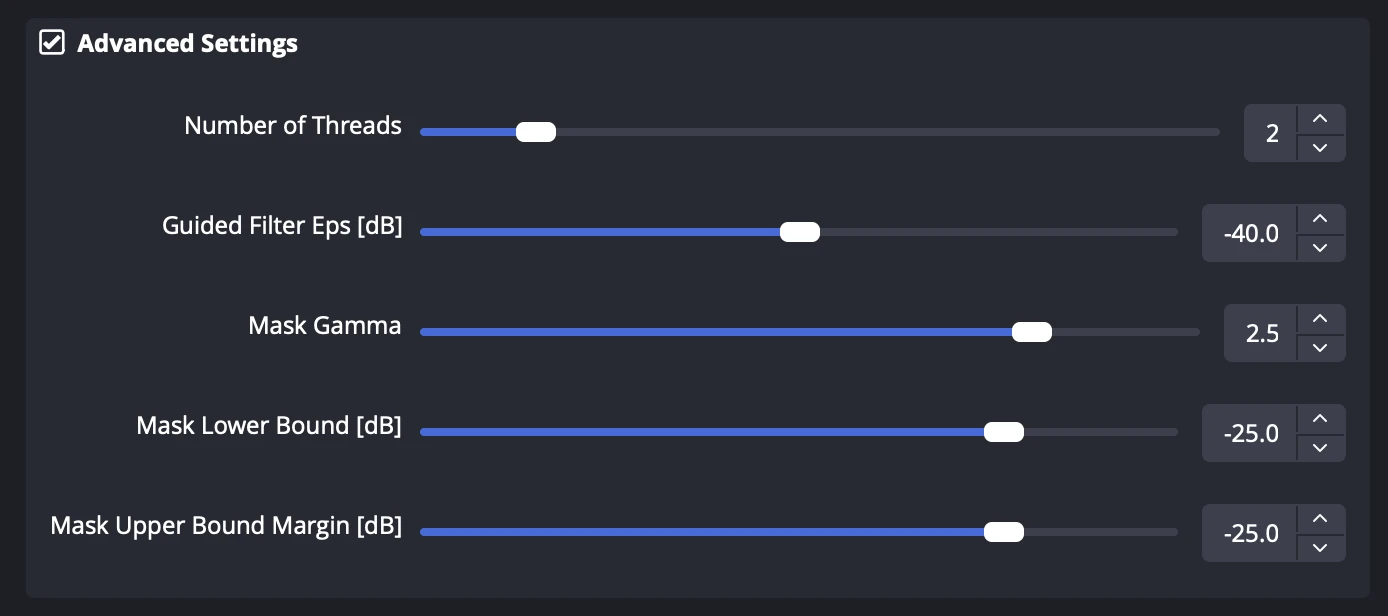
To modify the extended configurations, you must enable the Advanced Settings checkbox.
Note: When this checkbox is unchecked, all settings below are forced
to their default values.
- Number of Threads: Specifies the number of CPU threads used for processing. A value of 2 is optimal for most environments.
- Guided Filter Eps [dB]: Controls the epsilon parameter of the Guided Filter. This balances smoothing versus edge preservation. Adjust this if fine details look too blurry or noisy.
- Mask Gamma: Controls the edge hardness.
- > 1.0: Makes edges sharper/thinner (choke).
- < 1.0: Makes edges softer/thicker (spread).
- Typical value: 1.5 - 2.5
- Mask Lower Bound [dB] & Mask Upper Bound Margin [dB]: These parameters prevent ambiguous semi-transparency to improve the
cutout quality.
- Lower Bound: Pixels below this level become fully transparent. Controls halo removal.
- Upper Bound Margin: Pixels above this level become fully opaque. Controls core solidity.